> ## Documentation Index
> Fetch the complete documentation index at: https://www.dynamic.xyz/docs/llms.txt
> Use this file to discover all available pages before exploring further.
# Social Authentication
This feature requires you to configure deeplinks and whitelist your app's
deeplink URL in the Dynamic dashboard. See the steps below.
This guide is for setting up Google social login in your Flutter app.
This guide uses Google as an example. To set up other providers (Apple, Discord, Farcaster, GitHub, etc.), see the Social Providers Overview: [Social Providers Overview](/overview/social-providers/overview).
## 1. Enable social login in your Dynamic Dashboard
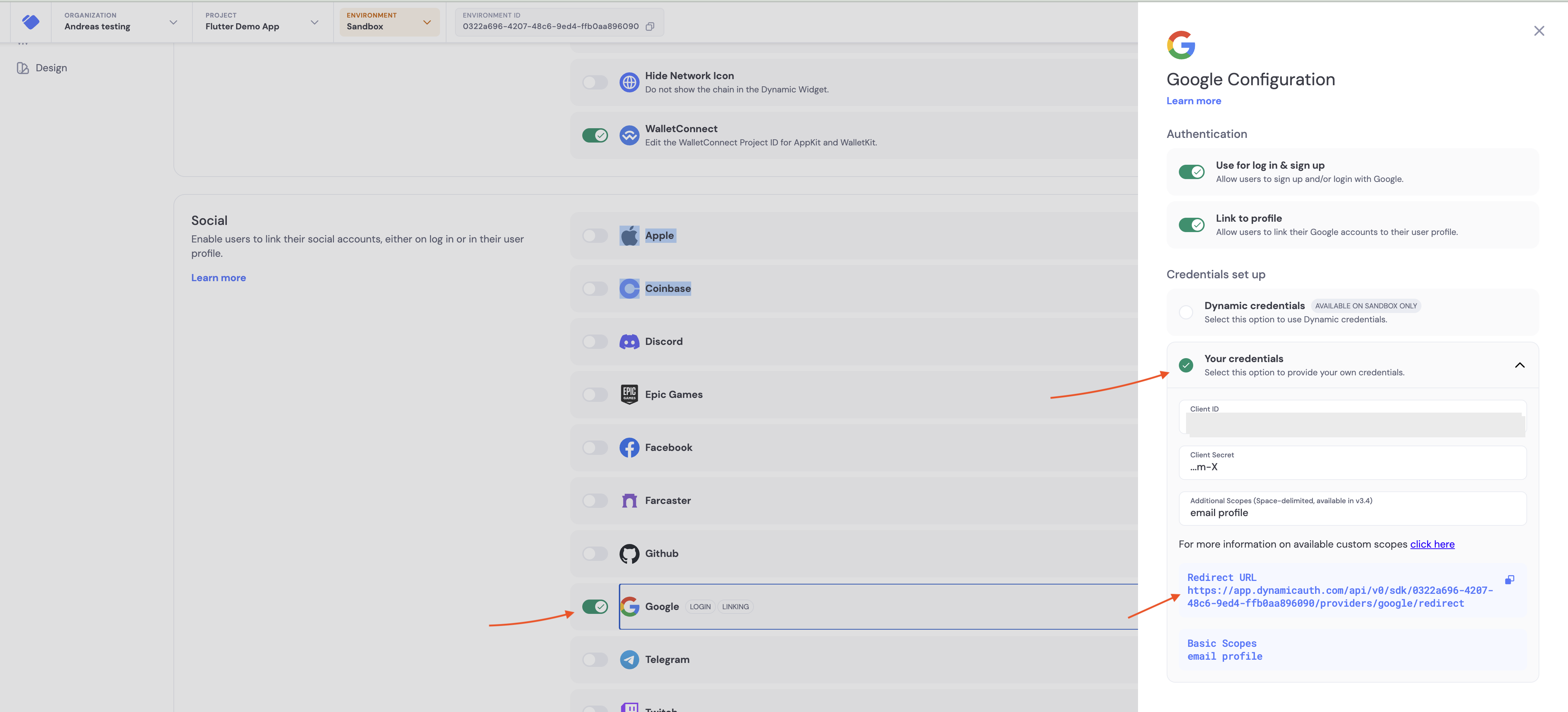
### 1.1. Enable Google login in the Dynamic Dashboard
* Go to the [Login & User Profile settings](https://app.dynamic.xyz/dashboard/log-in-user-profile)
* Click on "Google"
* Toggle "Enable" on
* Copy the redirect URL shown in the Google section
 ### 1.2. Create Google OAuth credentials
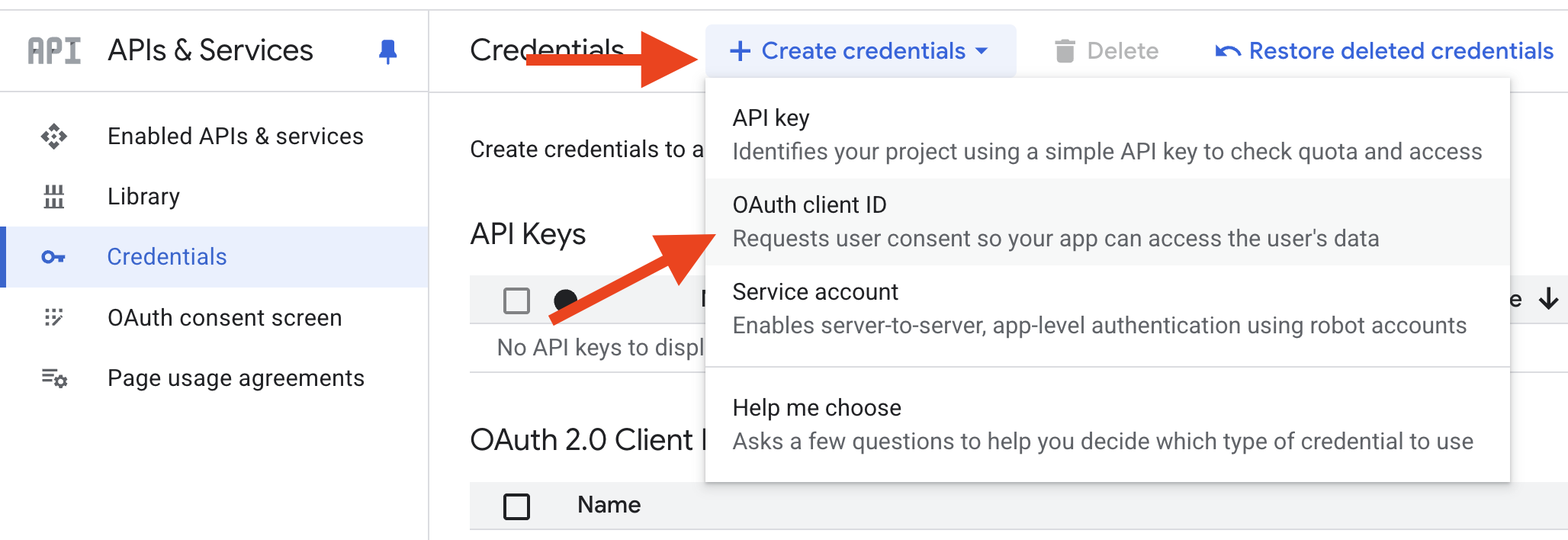
* Go to the [Google Cloud Console credentials page](https://console.cloud.google.com/apis/credentials)
* Click on "Create credentials"
* Select "OAuth client ID"
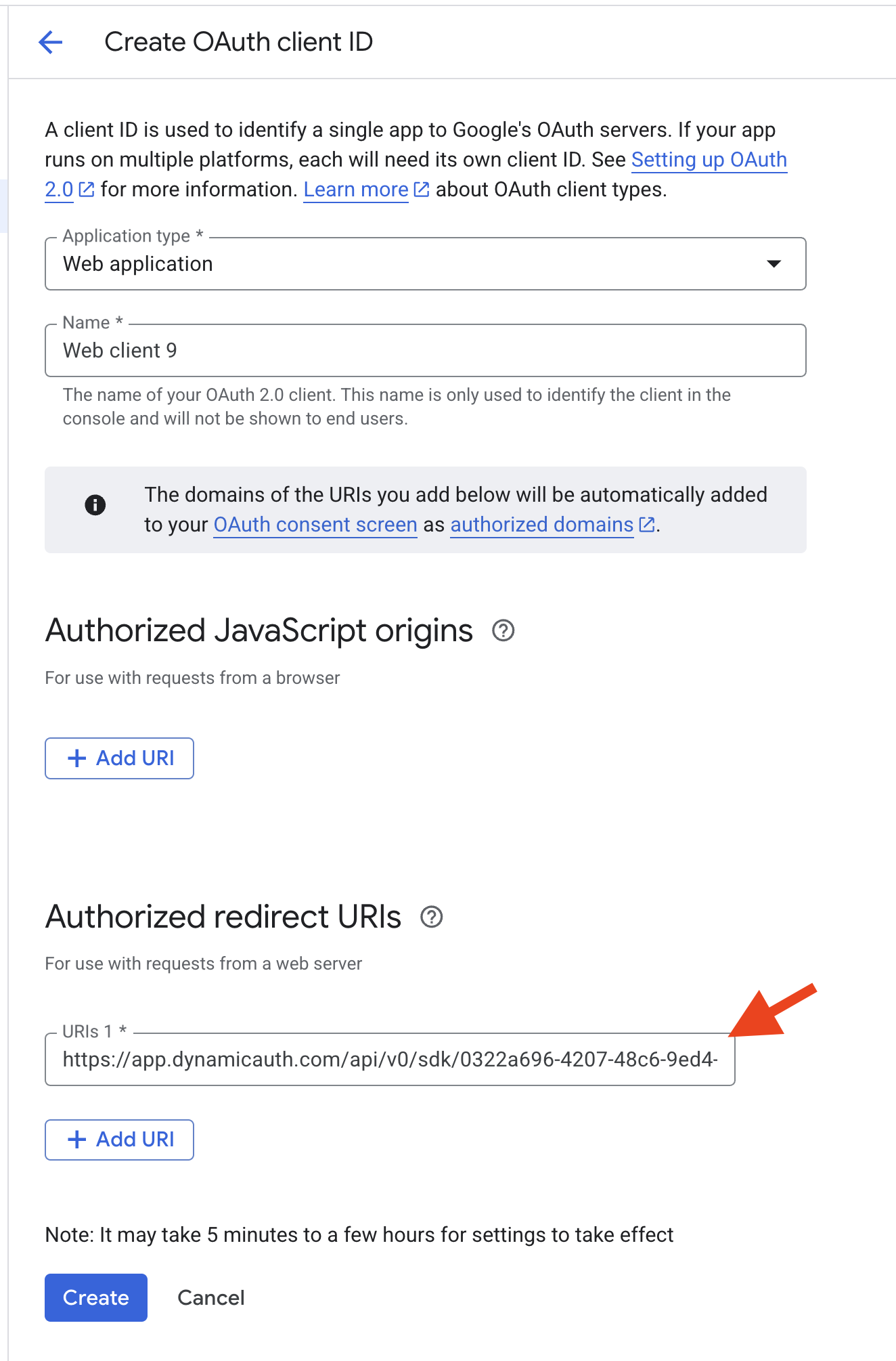
* Choose "Web application" as the Application type
* Add the redirect URI from the Dynamic Dashboard Google section to "Authorized redirect URIs"
* Click "Create"
* Copy the "Client ID" and "Client Secret"
* Paste the "Client ID" and "Client Secret" into the Google section in your Dynamic Dashboard
* Click on "Save"
### 1.2. Create Google OAuth credentials
* Go to the [Google Cloud Console credentials page](https://console.cloud.google.com/apis/credentials)
* Click on "Create credentials"
* Select "OAuth client ID"
* Choose "Web application" as the Application type
* Add the redirect URI from the Dynamic Dashboard Google section to "Authorized redirect URIs"
* Click "Create"
* Copy the "Client ID" and "Client Secret"
* Paste the "Client ID" and "Client Secret" into the Google section in your Dynamic Dashboard
* Click on "Save"
 ## 2. Enable deeplinking in your project
Android requires a special setup for social login deeplinks, which is covered
below. iOS does not require additional configuration for the basic social login
flow.
If you want to use HTTPS links or implement more advanced deep linking
behavior, follow Flutter's guide: [Flutter Deep Linking](https://docs.flutter.dev/ui/navigation/deep-linking).
### 2.1. Configure AndroidManifest.xml
You need to add a deeplink scheme to your `AndroidManifest.xml` to enable deep linking in your app.
Add the following to your `AndroidManifest.xml`:
```xml theme={"system"}
```
Replace `YOUR_CALLBACK_URL_SCHEME_HERE` with your scheme, for example `flutterdemo`.
### 2.2. Remove any `android:taskAffinity=""` from your AndroidManifest.xml
In your `AndroidManifest.xml`, remove any `android:taskAffinity=""` from the activity tag. This prevents a bug on Android where the popup does not close properly.
### 2.3. Configure the Dynamic SDK to use your deeplink
Add `redirectUrl` to your `DynamicSDK.init` call so it matches your scheme.
```dart theme={"system"}
DynamicSDK.init(
props: ClientProps(
// Find your environment id at https://app.dynamic.xyz/dashboard/developer
environmentId: '',
redirectUrl: "://",
),
);
```
Example with `flutterdemo` scheme:
```dart theme={"system"}
DynamicSDK.init(
props: ClientProps(
// Find your environment id at https://app.dynamic.xyz/dashboard/developer
environmentId: '',
redirectUrl: "flutterdemo://",
),
);
```
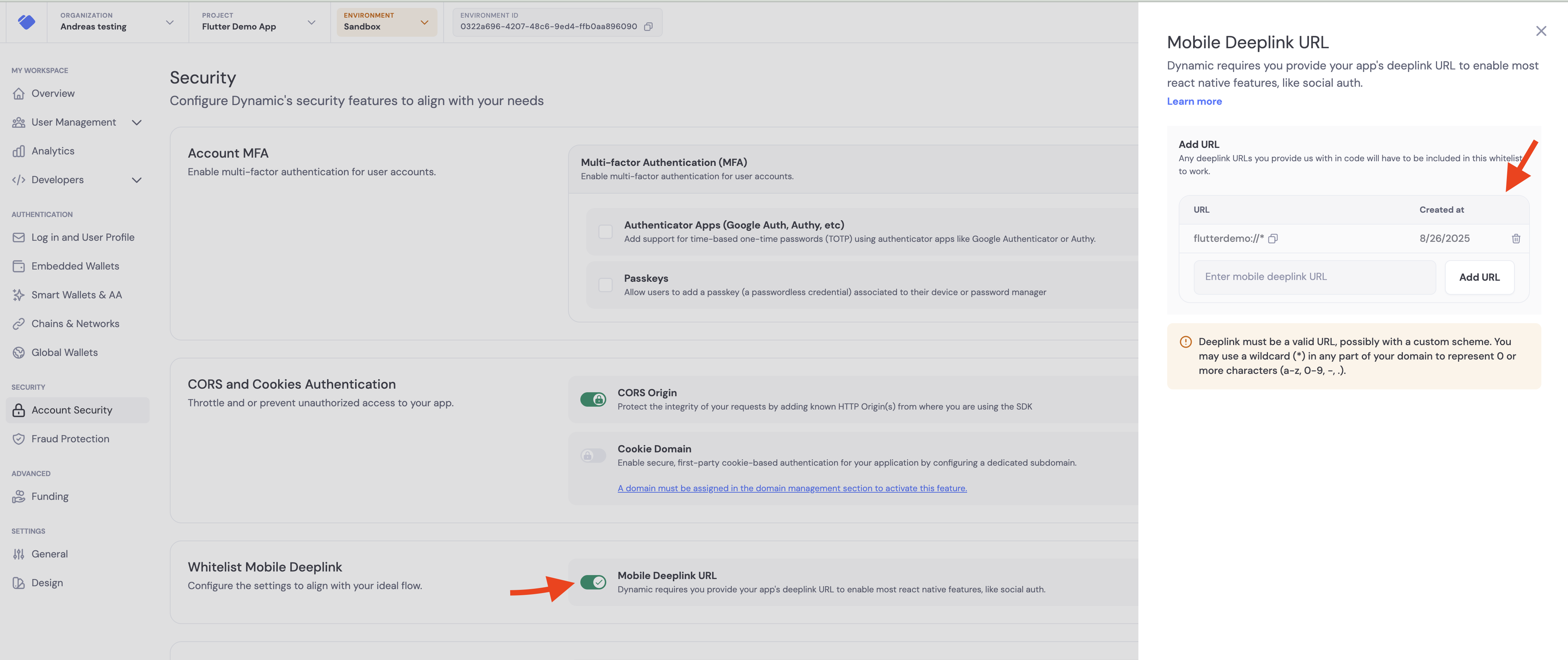
## 3. Whitelist your deeplink scheme in the Dynamic Dashboard
* Go to the [Security page](https://app.dynamic.xyz/dashboard/security)
* Enable "Mobile Deeplink URL"
* Add your deeplink pattern to the list, for example `flutterdemo://*`
* Click on "Save"
## 2. Enable deeplinking in your project
Android requires a special setup for social login deeplinks, which is covered
below. iOS does not require additional configuration for the basic social login
flow.
If you want to use HTTPS links or implement more advanced deep linking
behavior, follow Flutter's guide: [Flutter Deep Linking](https://docs.flutter.dev/ui/navigation/deep-linking).
### 2.1. Configure AndroidManifest.xml
You need to add a deeplink scheme to your `AndroidManifest.xml` to enable deep linking in your app.
Add the following to your `AndroidManifest.xml`:
```xml theme={"system"}
```
Replace `YOUR_CALLBACK_URL_SCHEME_HERE` with your scheme, for example `flutterdemo`.
### 2.2. Remove any `android:taskAffinity=""` from your AndroidManifest.xml
In your `AndroidManifest.xml`, remove any `android:taskAffinity=""` from the activity tag. This prevents a bug on Android where the popup does not close properly.
### 2.3. Configure the Dynamic SDK to use your deeplink
Add `redirectUrl` to your `DynamicSDK.init` call so it matches your scheme.
```dart theme={"system"}
DynamicSDK.init(
props: ClientProps(
// Find your environment id at https://app.dynamic.xyz/dashboard/developer
environmentId: '',
redirectUrl: "://",
),
);
```
Example with `flutterdemo` scheme:
```dart theme={"system"}
DynamicSDK.init(
props: ClientProps(
// Find your environment id at https://app.dynamic.xyz/dashboard/developer
environmentId: '',
redirectUrl: "flutterdemo://",
),
);
```
## 3. Whitelist your deeplink scheme in the Dynamic Dashboard
* Go to the [Security page](https://app.dynamic.xyz/dashboard/security)
* Enable "Mobile Deeplink URL"
* Add your deeplink pattern to the list, for example `flutterdemo://*`
* Click on "Save"
 ## 4. Run your app
* Run your app
* Click on the "Login" button
* Select "Google"
* A Google popup should appear
* Select your Google account
* You should be redirected to your app and logged in
You can read more about the social module [here](/flutter/sdk-reference/authentication#sdkauthsocial).
## Custom UI
If you prefer to build your own UI instead of using Dynamic's pre-built authentication flow, you can use hooks for social login. Note that **steps 1-3 above are still required** - you still need to configure social providers in the Dynamic Dashboard, enable deeplinking, and whitelist your deeplink scheme.
You can use the [`auth.social.connect` method](/flutter/sdk-reference/authentication#connect) to trigger social authentication programmatically:
```dart theme={"system"}
import 'package:dynamic_sdk/dynamic_sdk.dart';
import 'package:flutter/material.dart';
class LoginWithGoogleOutlinedButton extends StatelessWidget {
const LoginWithGoogleOutlinedButton({super.key});
@override
Widget build(BuildContext context) {
return OutlinedButton(
onPressed: () async {
// This line will trigger the Google authentication flow
await DynamicSDK.instance.auth.social.connect(
provider: SocialProvider.google,
);
},
child: const Text('Continue with Google'),
);
}
}
```
## Live Example
For a complete working example, see the Flutter live example: [Live Example](/flutter/live-example).
## 4. Run your app
* Run your app
* Click on the "Login" button
* Select "Google"
* A Google popup should appear
* Select your Google account
* You should be redirected to your app and logged in
You can read more about the social module [here](/flutter/sdk-reference/authentication#sdkauthsocial).
## Custom UI
If you prefer to build your own UI instead of using Dynamic's pre-built authentication flow, you can use hooks for social login. Note that **steps 1-3 above are still required** - you still need to configure social providers in the Dynamic Dashboard, enable deeplinking, and whitelist your deeplink scheme.
You can use the [`auth.social.connect` method](/flutter/sdk-reference/authentication#connect) to trigger social authentication programmatically:
```dart theme={"system"}
import 'package:dynamic_sdk/dynamic_sdk.dart';
import 'package:flutter/material.dart';
class LoginWithGoogleOutlinedButton extends StatelessWidget {
const LoginWithGoogleOutlinedButton({super.key});
@override
Widget build(BuildContext context) {
return OutlinedButton(
onPressed: () async {
// This line will trigger the Google authentication flow
await DynamicSDK.instance.auth.social.connect(
provider: SocialProvider.google,
);
},
child: const Text('Continue with Google'),
);
}
}
```
## Live Example
For a complete working example, see the Flutter live example: [Live Example](/flutter/live-example).