> ## Documentation Index
> Fetch the complete documentation index at: https://www.dynamic.xyz/docs/llms.txt
> Use this file to discover all available pages before exploring further.
# Adding Captcha Protection
## Summary
Setting up a captcha can help protect your Dynamic-enabled site from bots. Dynamic supports two captcha providers:
* **Cloudflare Turnstile** — Dynamic manages the keys for you by default, or bring your own site key and secret key.
* **hCaptcha** — Bring your own site key and secret key.
## Setting up Cloudflare Turnstile
Dynamic manages Turnstile keys by default — no Cloudflare account required. By default, Dynamic uses the [managed widget type](https://developers.cloudflare.com/turnstile/#widget-types), which lets Cloudflare automatically select the best challenge experience for each visitor.
1. **Log in to Dynamic Dashboard.** On the left navigation bar, click on "Fraud Protections" then select "Captcha".
2. **Select Cloudflare Turnstile** as your provider.
3. **(Optional) Enter your own site key and secret key** if you want to use your own Cloudflare Turnstile account. Bringing your own credentials is required if you want to customize widget settings such as the widget type.
4. **Enable** — Toggle captcha on when you are ready.
### Setting up your own Cloudflare Turnstile account
If you want to bring your own credentials (for example, to control the widget type or other settings):
1. **Sign up for a Cloudflare account** at [cloudflare.com](https://www.cloudflare.com/) if you don't have one.
2. **Navigate to Turnstile** in the Cloudflare dashboard sidebar.
3. **Add a new site** — Enter a name and the domain(s) where you'll use the Dynamic SDK. Select your preferred [widget type](https://developers.cloudflare.com/turnstile/#widget-types) (managed, non-interactive, or invisible).
4. **Copy your site key** — shown after creating the site.
5. **Copy your secret key** — shown on the same page. This is used server-side to verify tokens and is never exposed to the SDK.
6. Enter both keys in the Dynamic Dashboard under Fraud Protections → Captcha.
## Setting up hCaptcha
To get started, you must first create an hCaptcha account.
1. **Sign up for a new account on** [hCaptcha](https://www.hcaptcha.com/) - We recommend considering upgrading to the "Pro" plan, which allows for "passive" and "friction-free" modes.
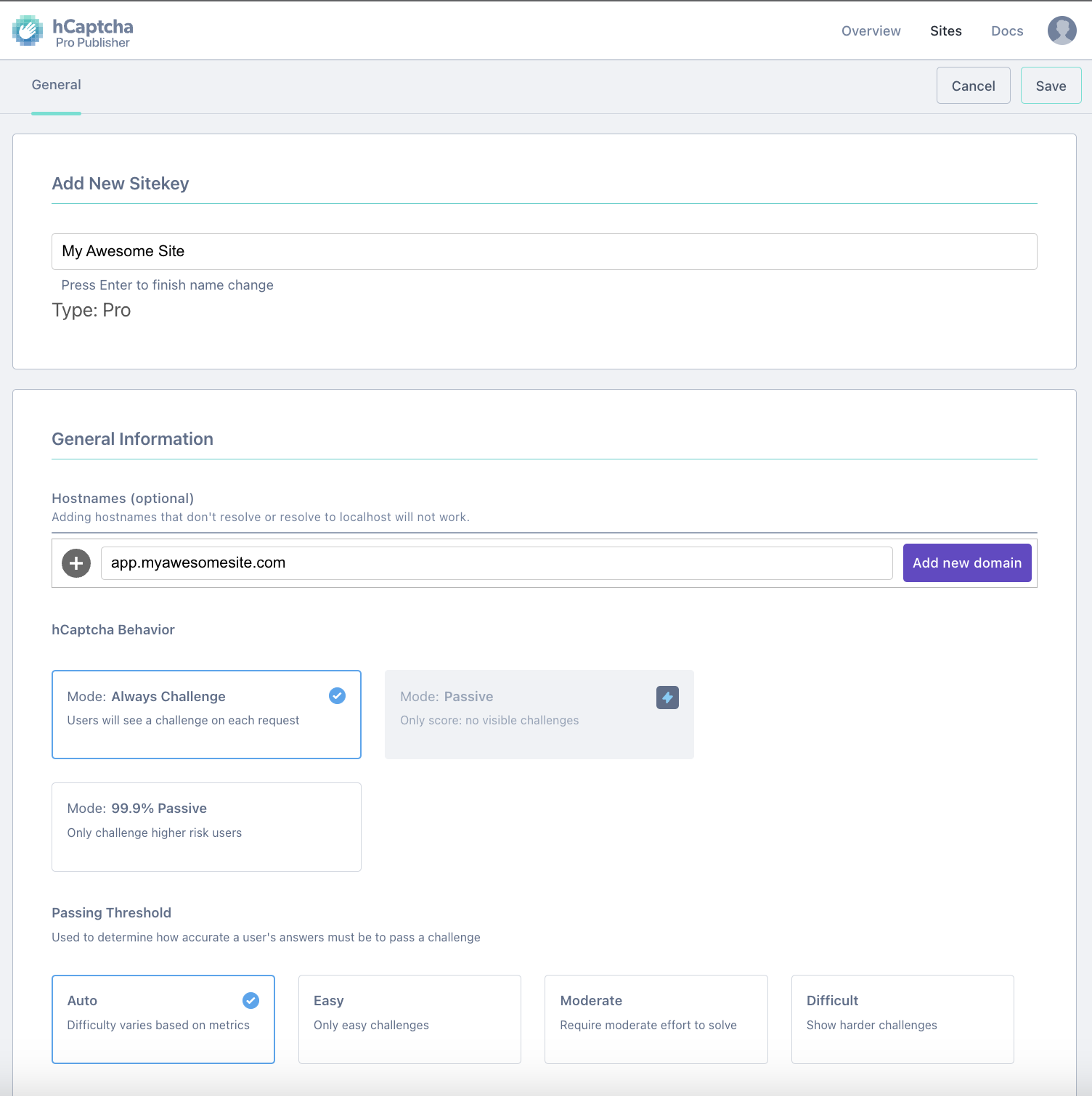
2. **Add a new site** - Make sure the hostname corresponds to the domain you are using the Dynamic SDK on. For example, if you plan to set up the Dynamic SDK in `app.myawesomesite.com`, then you should add this value to the Hostname sections in hCaptcha.
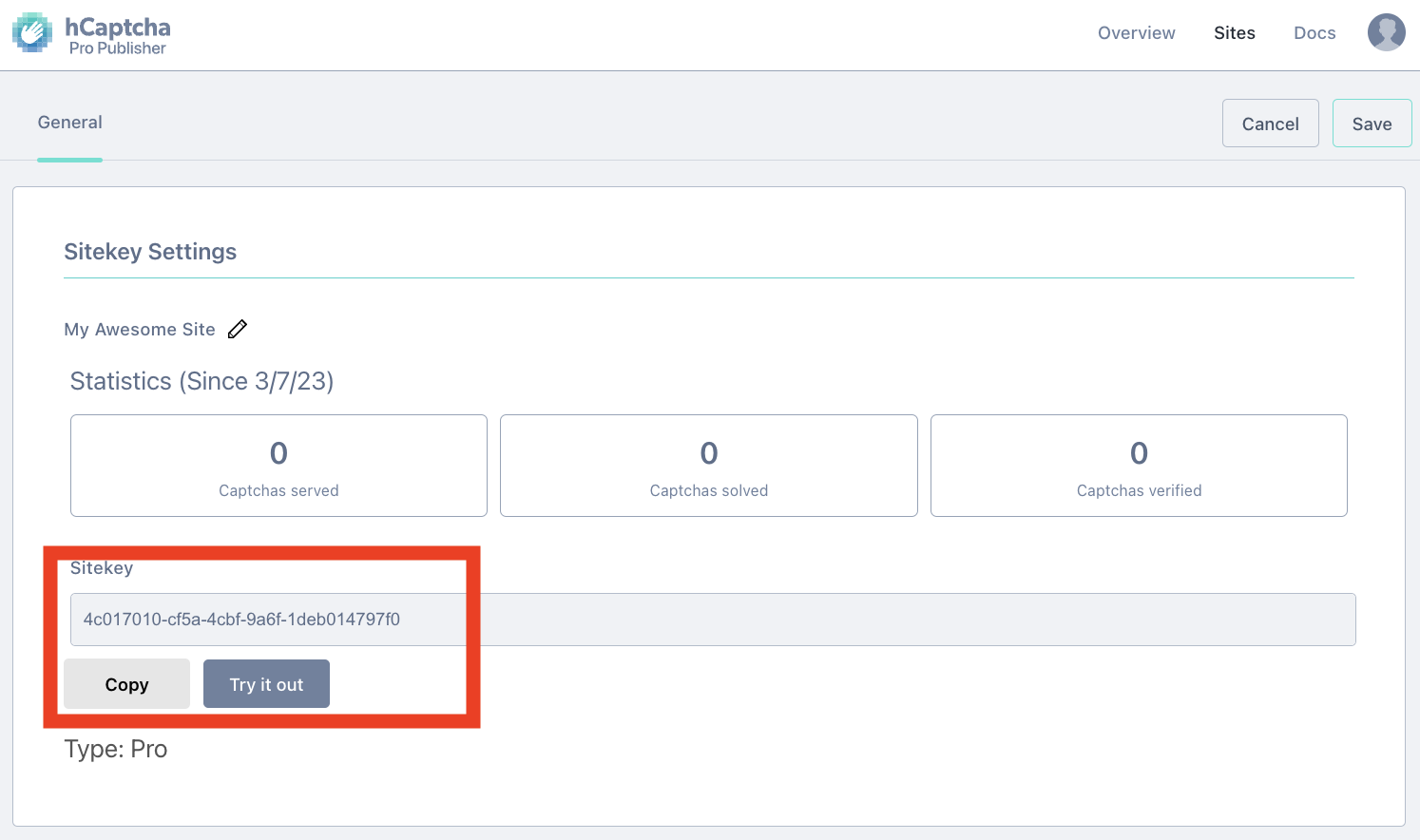
 3. **Get your site key** - This is used by the Dynamic SDK to communicate with hCaptcha and display a captcha challenge before the verification step in the wallet sign-in flow. Copy this value, which we will need to set up in Dynamic.
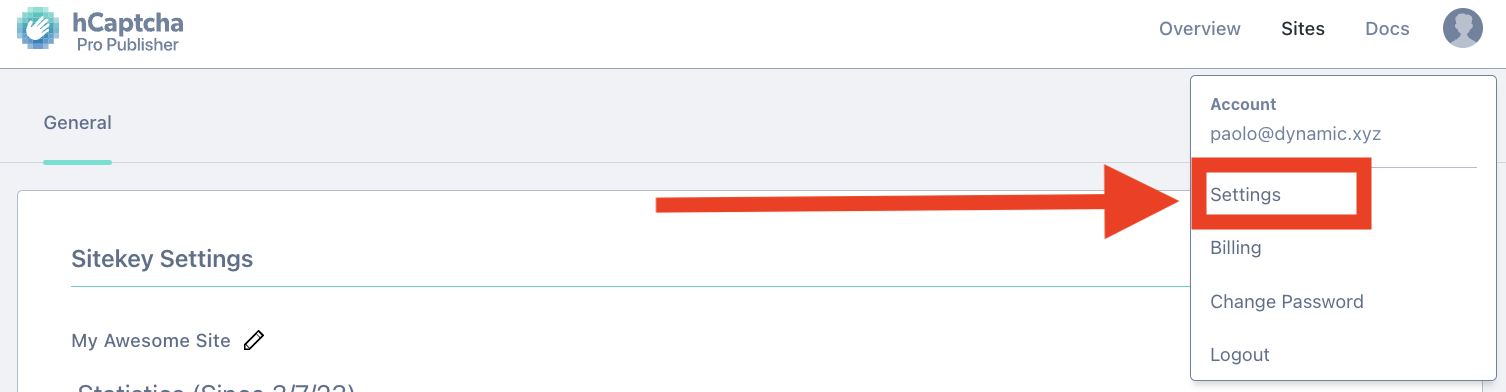
 4. **Get your secret key** - This is used by the Dynamic server-side backend to verify the captcha result from the SDK, and is never leaked to the SDK. To get your secret key, click on your account profile on the upper right corner and select "Settings". You should see your plaintext secret key, which you should also copy to set up in Dynamic.
 ## Setting up Dynamic captcha (hCaptcha)
Now that we have hCaptcha set up, we can move on to final configuration within Dynamic.
1. **Log in to Dynamic Dashboard.** On the left navigation bar, click on "Fraud Protections" then select "Captcha".
2. **Select hCaptcha** as your provider and add your site key and secret key from the previous steps.
3. **Enable** — When you are ready to enable the captcha, please make sure to switch the "enable" toggle.
## Implementation
Add the captcha provider script to your app's `index.html` ``, then call `isCaptchaRequired()` before sign-in. If captcha is enabled, render the widget, pass the token to `setCaptchaToken`, and proceed with sign-in. The SDK attaches the token to the next request automatically.
### 1. Load the script
Add this to your `index.html` ``:
```html theme={"system"}
```
```html theme={"system"}
```
### 2. Render the widget and set the token
`setCaptchaToken` must be called before any sign-in method — email OTP, social login, wallet connection, etc.
```javascript theme={"system"}
import { isCaptchaRequired, setCaptchaToken } from '@dynamic-labs-sdk/client';
async function handleSignIn() {
if (isCaptchaRequired()) {
const token = await new Promise((resolve) => {
turnstile.render('#captcha-container', {
sitekey: 'YOUR_TURNSTILE_SITE_KEY',
callback: resolve,
});
});
setCaptchaToken({ captchaToken: token });
}
// Call whichever sign-in method applies:
await dynamicClient.auth.email.sendOTP({ email });
// or: await dynamicClient.auth.social.connect({ provider });
// or: await dynamicClient.auth.wallet.connect();
}
```
```javascript theme={"system"}
import { isCaptchaRequired, setCaptchaToken } from '@dynamic-labs-sdk/client';
async function handleSignIn() {
if (isCaptchaRequired()) {
const token = await new Promise((resolve) => {
hcaptcha.render('captcha-container', {
sitekey: 'YOUR_HCAPTCHA_SITE_KEY',
callback: resolve,
});
});
setCaptchaToken({ captchaToken: token });
}
// Call whichever sign-in method applies:
await dynamicClient.auth.email.sendOTP({ email });
// or: await dynamicClient.auth.social.connect({ provider });
// or: await dynamicClient.auth.wallet.connect();
}
```
```tsx theme={"system"}
import { isCaptchaRequired, setCaptchaToken } from '@dynamic-labs-sdk/client';
import Turnstile from 'react-turnstile';
function SignInForm() {
const showCaptcha = isCaptchaRequired();
const [captchaReady, setCaptchaReady] = useState(!showCaptcha);
const handleVerify = (token: string) => {
setCaptchaToken({ captchaToken: token });
setCaptchaReady(true);
};
return (
);
}
```
```tsx theme={"system"}
import { isCaptchaRequired, setCaptchaToken } from '@dynamic-labs-sdk/client';
import HCaptcha from '@hcaptcha/react-hcaptcha';
function SignInForm() {
const showCaptcha = isCaptchaRequired();
const [captchaReady, setCaptchaReady] = useState(!showCaptcha);
const handleVerify = (token: string) => {
setCaptchaToken({ captchaToken: token });
setCaptchaReady(true);
};
return (
);
}
```
## Setting up Dynamic captcha (hCaptcha)
Now that we have hCaptcha set up, we can move on to final configuration within Dynamic.
1. **Log in to Dynamic Dashboard.** On the left navigation bar, click on "Fraud Protections" then select "Captcha".
2. **Select hCaptcha** as your provider and add your site key and secret key from the previous steps.
3. **Enable** — When you are ready to enable the captcha, please make sure to switch the "enable" toggle.
## Implementation
Add the captcha provider script to your app's `index.html` ``, then call `isCaptchaRequired()` before sign-in. If captcha is enabled, render the widget, pass the token to `setCaptchaToken`, and proceed with sign-in. The SDK attaches the token to the next request automatically.
### 1. Load the script
Add this to your `index.html` ``:
```html theme={"system"}
```
```html theme={"system"}
```
### 2. Render the widget and set the token
`setCaptchaToken` must be called before any sign-in method — email OTP, social login, wallet connection, etc.
```javascript theme={"system"}
import { isCaptchaRequired, setCaptchaToken } from '@dynamic-labs-sdk/client';
async function handleSignIn() {
if (isCaptchaRequired()) {
const token = await new Promise((resolve) => {
turnstile.render('#captcha-container', {
sitekey: 'YOUR_TURNSTILE_SITE_KEY',
callback: resolve,
});
});
setCaptchaToken({ captchaToken: token });
}
// Call whichever sign-in method applies:
await dynamicClient.auth.email.sendOTP({ email });
// or: await dynamicClient.auth.social.connect({ provider });
// or: await dynamicClient.auth.wallet.connect();
}
```
```javascript theme={"system"}
import { isCaptchaRequired, setCaptchaToken } from '@dynamic-labs-sdk/client';
async function handleSignIn() {
if (isCaptchaRequired()) {
const token = await new Promise((resolve) => {
hcaptcha.render('captcha-container', {
sitekey: 'YOUR_HCAPTCHA_SITE_KEY',
callback: resolve,
});
});
setCaptchaToken({ captchaToken: token });
}
// Call whichever sign-in method applies:
await dynamicClient.auth.email.sendOTP({ email });
// or: await dynamicClient.auth.social.connect({ provider });
// or: await dynamicClient.auth.wallet.connect();
}
```
```tsx theme={"system"}
import { isCaptchaRequired, setCaptchaToken } from '@dynamic-labs-sdk/client';
import Turnstile from 'react-turnstile';
function SignInForm() {
const showCaptcha = isCaptchaRequired();
const [captchaReady, setCaptchaReady] = useState(!showCaptcha);
const handleVerify = (token: string) => {
setCaptchaToken({ captchaToken: token });
setCaptchaReady(true);
};
return (
);
}
```
```tsx theme={"system"}
import { isCaptchaRequired, setCaptchaToken } from '@dynamic-labs-sdk/client';
import HCaptcha from '@hcaptcha/react-hcaptcha';
function SignInForm() {
const showCaptcha = isCaptchaRequired();
const [captchaReady, setCaptchaReady] = useState(!showCaptcha);
const handleVerify = (token: string) => {
setCaptchaToken({ captchaToken: token });
setCaptchaReady(true);
};
return (
);
}
```