> ## Documentation Index
> Fetch the complete documentation index at: https://www.dynamic.xyz/docs/llms.txt
> Use this file to discover all available pages before exploring further.
# Sign in with Farcaster
## Introduction
This tutorial will guide you through the process of enabling read-only access to Farcaster using the Dynamic SDK (if you need write access, see [this guide](/recipes/integrations/farcaster/farcaster-write-access)).
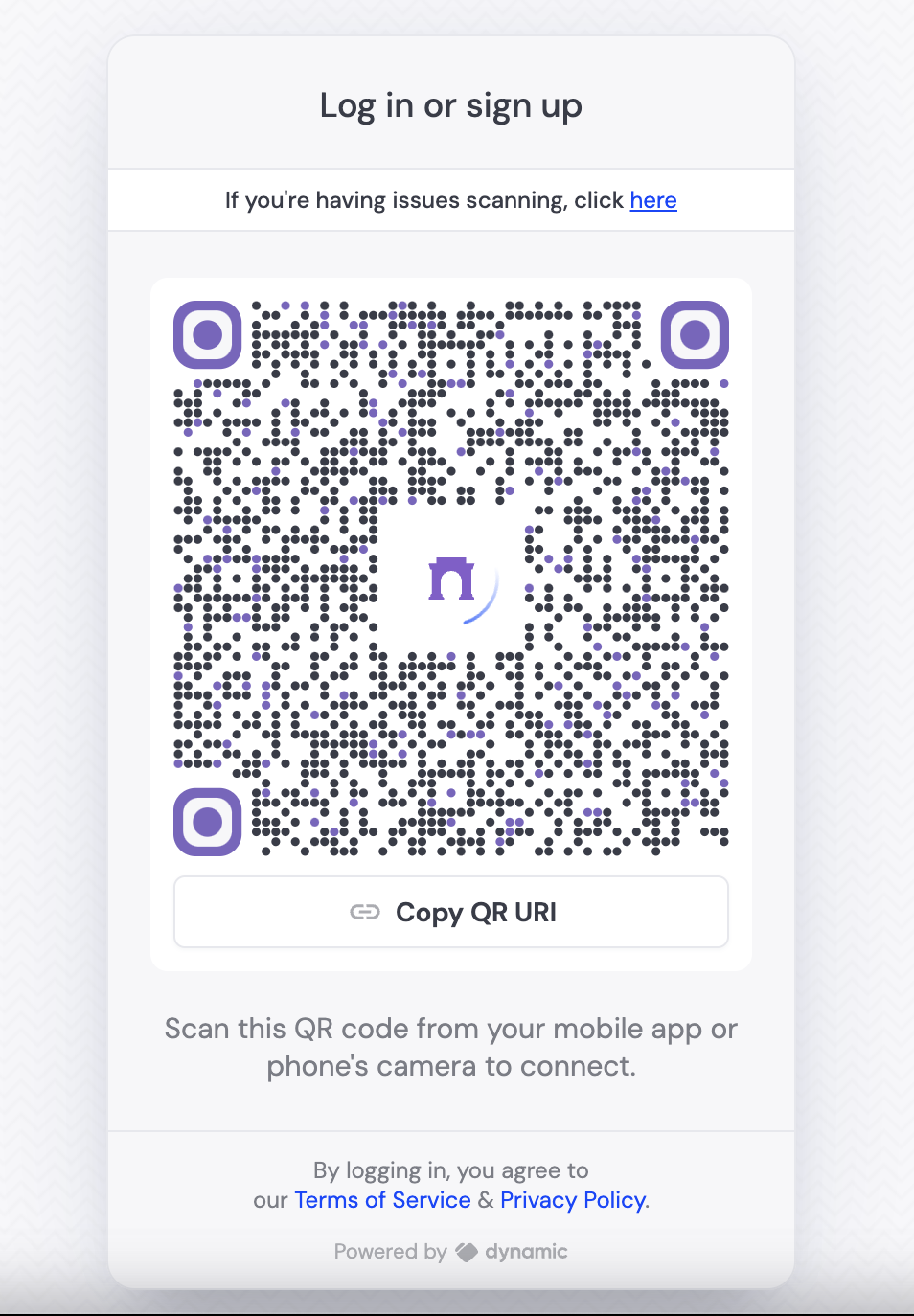
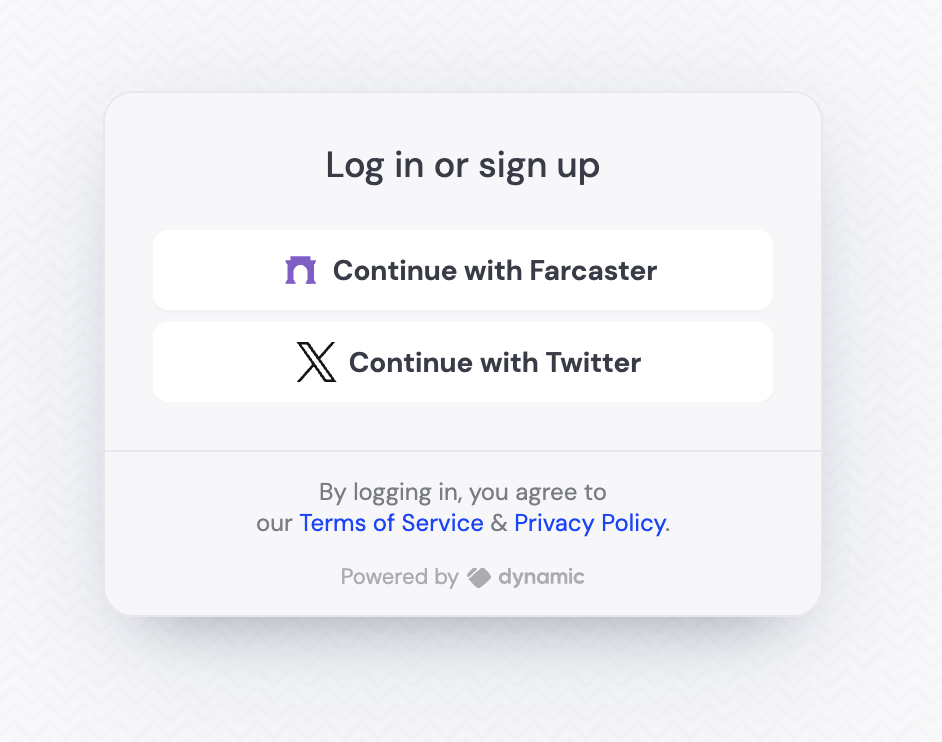
If you enable only social signup, and only Farcaster as a provider, the user will see the QR code immediately. If there are other providers enabled/other login methods, Farcaster will appear as a button, which will then open the QR code. Both UIs are shown below:
 ## Video walkthrough
## Step By Step Walkthrough
### Enable Farcaster Signup
Visit [Log in & User Profile page in the dashboard](https://app.dynamic.xyz/dashboard/log-in-user-profile) and under "Social", enable Farcaster.
### Configure your Dynamic app
You don't need to do anything extra in your Dynamic app to enable Farcaster sign-in. The Dynamic SDK will automatically handle the sign-in process for you.
The easiest way of seeing the UI is to use the DynamicWidget UI component:
```tsx theme={"system"}
import { DynamicContextProvider, DynamicWidget } from "@dynamic-labs/sdk-react-core";
export default function App() {
return (
);
}
```
You're done! Your users can now sign in with Farcaster.
## Further resources
* [Enable write access to Farcaster](/recipes/integrations/farcaster/farcaster-write-access)
* [Create embedded wallet from Farcaster Frame](/recipes/integrations/farcaster/embedded-wallet-frame)
## Video walkthrough
## Step By Step Walkthrough
### Enable Farcaster Signup
Visit [Log in & User Profile page in the dashboard](https://app.dynamic.xyz/dashboard/log-in-user-profile) and under "Social", enable Farcaster.
### Configure your Dynamic app
You don't need to do anything extra in your Dynamic app to enable Farcaster sign-in. The Dynamic SDK will automatically handle the sign-in process for you.
The easiest way of seeing the UI is to use the DynamicWidget UI component:
```tsx theme={"system"}
import { DynamicContextProvider, DynamicWidget } from "@dynamic-labs/sdk-react-core";
export default function App() {
return (
);
}
```
You're done! Your users can now sign in with Farcaster.
## Further resources
* [Enable write access to Farcaster](/recipes/integrations/farcaster/farcaster-write-access)
* [Create embedded wallet from Farcaster Frame](/recipes/integrations/farcaster/embedded-wallet-frame)