

Recommended: JavaScript SDK with React Hooks
For new React apps, we recommend the JavaScript SDK with React Hooks (
@dynamic-labs-sdk/react-hooks) instead of the legacy React SDK documented here. The JS SDK comes with many benefits such as a much smaller bundle size and other optimizations. Use the React quickstart (JavaScript SDK) to get started.Crypto.com is currently in limited beta. Please contact support if you’re interested in early access.
Overview
Crypto.com onramp integration allows users to purchase cryptocurrency directly within your application using Crypto.com’s payment infrastructure. This integration supports both widget-based and custom UI implementations, providing a seamless way for users to fund their wallets with fiat currency.Dashboard Setup
To enable Crypto.com onramp:- Go to the Funding tab in your Dynamic developer console
- Under “Fiat on-ramps”, toggle on Crypto.com
- Save the settings
Secret key
You’ll need to create a merchant account on crypto.com. So, go to the merchant.crypto.com and create an account.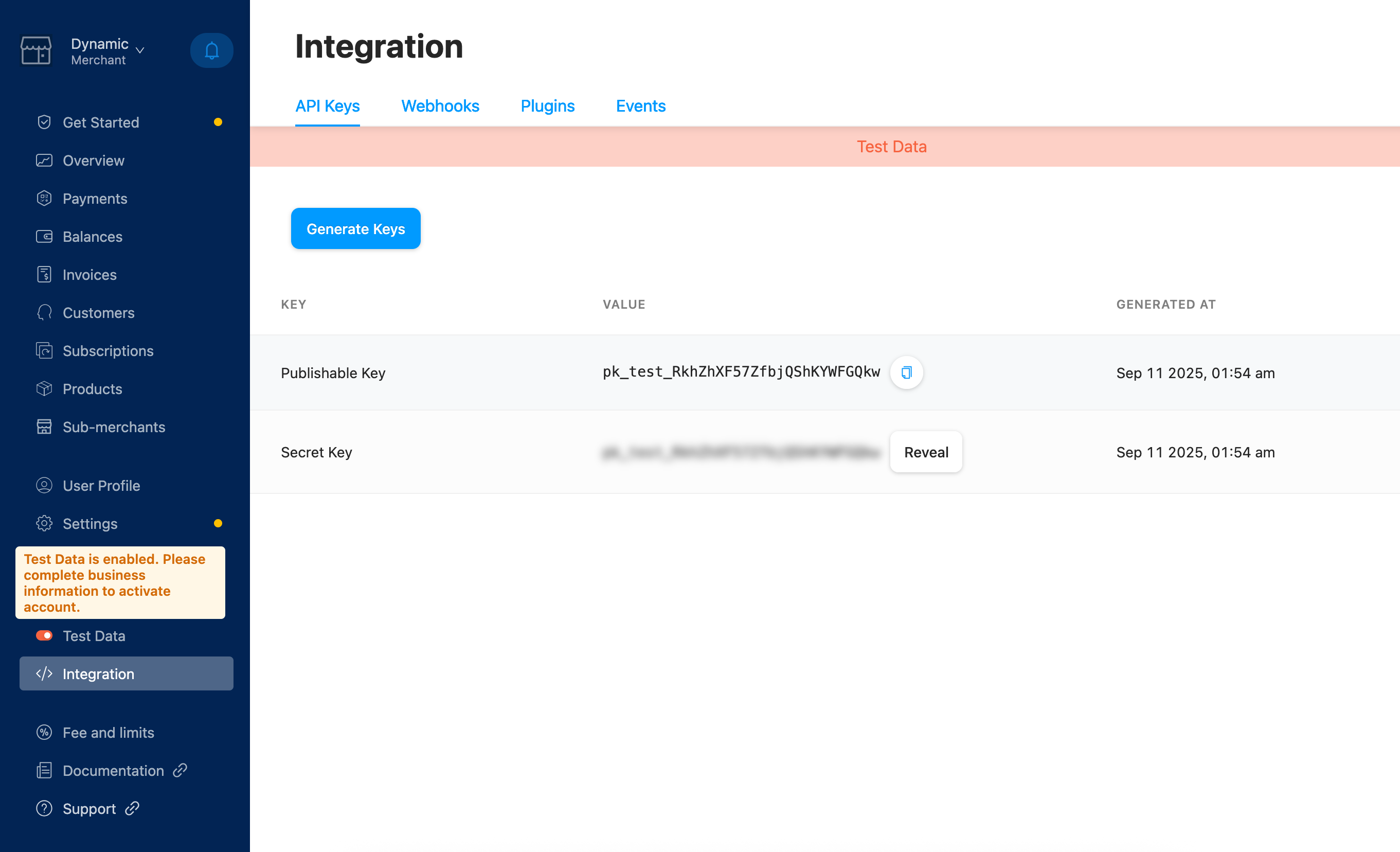
Return and cancel URLs
You’ll need to set the return and cancel URLs in the Dynamic developer console. These URLs are used to redirect the user after the payment is completed or cancelled.Widget Implementation
Once enabled, users will see Crypto.com as an option in the Dynamic widget’s deposit screen. Selecting Crypto.com in the widget opens a tailored screen where the user chooses fiat currency and amount; after confirming, the flow continues to Crypto.com in a new browser tab.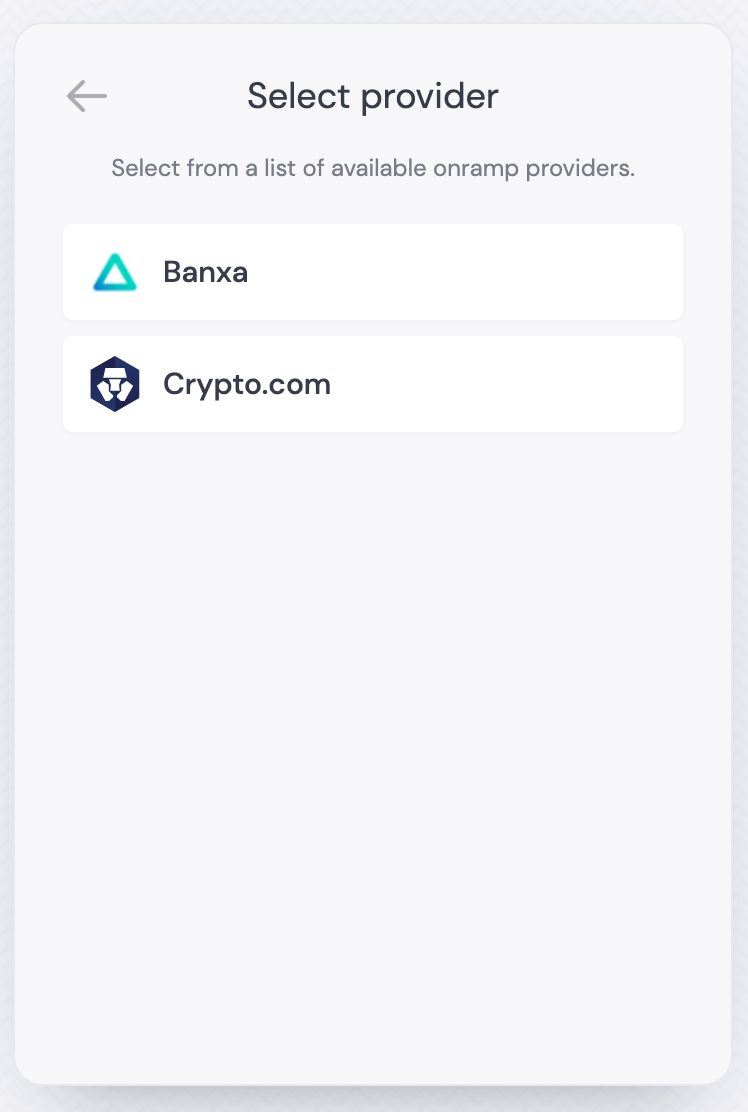
Programmatic Implementation
Using the useOnramp Hook
You can trigger Crypto.com onramp programmatically using theuseOnramp hook. This approach gives you full control over when and how the onramp is displayed. You can either fetch the URL to be opened and use it yourself, or you can use the open method to open the onramp (note: open resolves void).
Fetching the URL and opening it yourself
Use thegetOnrampUrl method to fetch the URL to be opened.
Fetching the QR code and opening it yourself
Use thegetOnrampQrCode method to fetch the QR code to be opened.
Auto opening the onramp
Accessing Provider Information
You can also access provider configuration details through theproviders array. This is useful for dynamically displaying available onramp options:
Providers Array Structure
Theproviders array contains configuration for each available onramp provider. This allows you to build custom UI components that dynamically show available options:
- Note:
urlmay be undefined until sufficient parameters (e.g.,tokenAmount,currency) are provided.
Payment Tracking
Payment ID
Crypto.com provides a payment ID in the onramp URL that you can use to track payment status. This ID is included in the URL parameters when the onramp is opened and is essential for monitoring payment progress.Getting Payment Information
Use the payment ID from the Crypto.com onramp URL to fetch payment details via their API. You’ll need your Crypto.com secret key for authentication:Key Response Fields
The Crypto.com payment API response contains extensive information about the payment. Here are the key fields you’ll commonly use for tracking and displaying payment status:Payment Status Values
Extracting Payment ID from URLs
When a user initiates a Crypto.com payment, the payment ID is included in the URL parameters. You can extract it for tracking purposes:Implementing Payment Status Tracking
You can implement payment status tracking by:- Extracting Payment ID: Parse the payment ID from the Crypto.com onramp URL
- Polling API: Periodically check payment status using the Crypto.com API
- Webhook Integration: Set up webhooks to receive real-time status updates
Supported Parameters
When opening Crypto.com onramp via the SDK, use these parameters:
Note: The SDK requests a provider URL from Dynamic’s API using these parameters. It does not construct Crypto.com-specific query parameters directly on the client.
Error Handling
Common error scenarios and how to handle them in your application:Insufficient Funds
- Error: User doesn’t have sufficient funds for the purchase
- Handling: Display appropriate error message and suggest alternative amounts
Invalid Wallet Address
- Error: The provided wallet address is invalid
- Handling: Validate wallet address format before opening onramp
Network Issues
- Error: Network connectivity issues during payment processing
- Handling: Implement retry logic and fallback mechanisms
Best Practices
- Validate Parameters: Always validate wallet addresses and amounts before opening the onramp
- Handle Errors Gracefully: Implement proper error handling for all failure scenarios
- Track Payment Status: Monitor payment status to provide user feedback
- Security: Never expose API keys in client-side code - use server-side endpoints for sensitive operations
- User Experience: Provide clear feedback during payment processing and handle loading states
- Provider Selection: Use the
providersarray to dynamically display available onramp options - Fallback Handling: Implement fallback mechanisms for when specific providers are unavailable
- Amount Validation: Ensure fiat amounts are reasonable and within supported limits
- Currency Support: Verify that the selected currency is supported by Crypto.com in your region
- URL Availability: Be aware that
urlmay be undefined until you supply sufficient parameters (e.g.,tokenAmount,currency)
Related
- useOnramp - Programmatic onramp triggering
- usePayWithDynamic - Unified payment flow
- Default Onramps - General onramp setup