This is an enterprise-only feature. Please contact us to enable.
Build a payment UI on top of Fireblocks Flow using the JavaScript SDK. Each section maps to a screen in the payment widget, with full component examples you can adapt.
The examples below use React for readability, but the Dynamic JavaScript SDK is framework-agnostic. The core functions (attachFlowSource, getFlowQuote, submitFlowTransaction, etc.) are plain JavaScript imported from @dynamic-labs-sdk/client and work with any framework — Vue, Svelte, Angular, or vanilla JS. The React hooks (e.g. useTokenBalances, useWalletAccounts) are convenience wrappers from @dynamic-labs-sdk/react-hooks; in other frameworks, call the equivalent client functions directly.
Do not mix the Dynamic React SDK (@dynamic-labs/sdk-react-core) with the JavaScript SDK (@dynamic-labs-sdk/client). They are separate SDKs with different architectures. Fireblocks Flow is only available in the JavaScript SDK. If your project currently uses the React SDK, you will need to migrate to the JavaScript SDK to use Flow.
Complete the Getting Started setup before following this guide.

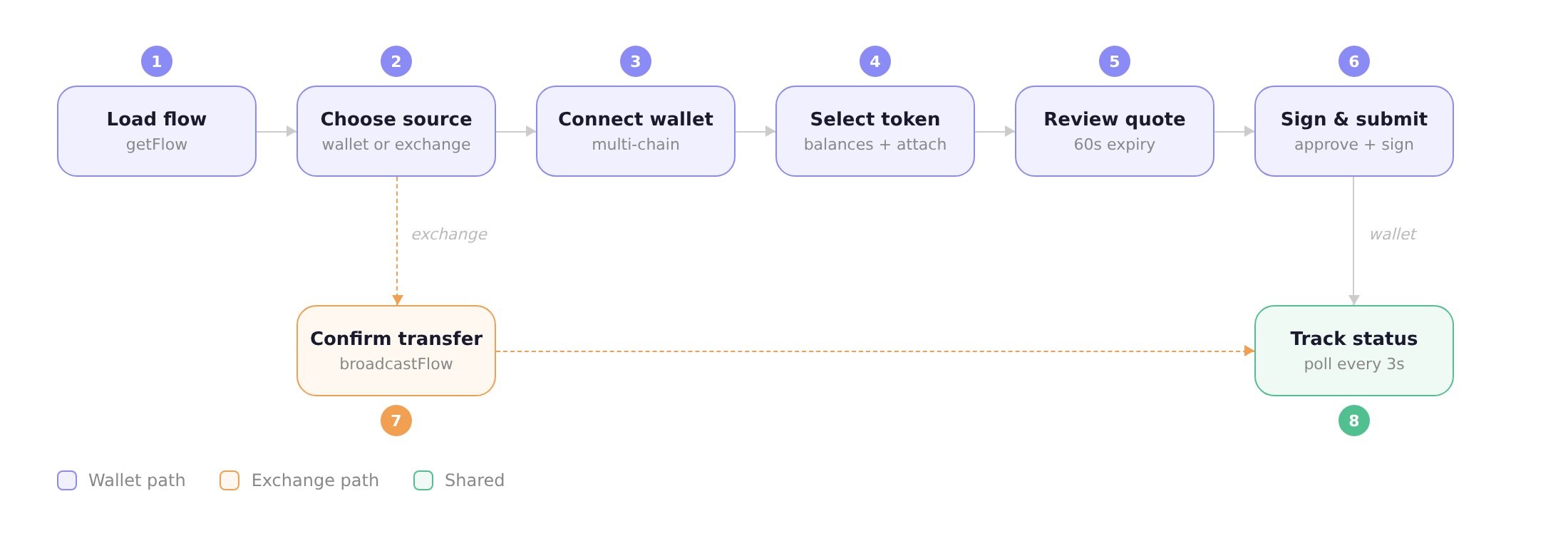
Flow overview

Flow UI overview — wallet and exchange payment paths

1. Load the flow

Your backend creates the flow and passes the flowId to the frontend. Load the flow and check if it is still actionable:
import { getFlow } from "@dynamic-labs-sdk/client";

const TERMINAL_STATES = new Set([
  "broadcasted",
  "source_confirmed",
  "cancelled",
  "expired",
  "failed",
]);

const flow = await getFlow({ flowId });

if (TERMINAL_STATES.has(flow.executionState)) {
  // Flow is finished — show a message or redirect
}
Read flowId from a URL parameter (e.g. ?flowId=...) so users can resume an in-progress flow after navigating away.

2. Choose a payment source

Flow supports two source types: wallet (user signs from a Web3 wallet) and exchange (user pays via an exchange like Coinbase). Present both options and route to the matching path.
const SelectSourceView = ({ onSelectWallet, onSelectExchange }) => (
  <div>
    <h3>Choose payment method</h3>

    <button onClick={onSelectWallet}>
      <span>Pay with Wallet</span>
      <span>Sign the transaction with your connected Web3 wallet</span>
    </button>

    <button onClick={onSelectExchange}>
      <span>Pay with Exchange</span>
      <span>Complete the payment via your Coinbase account</span>
    </button>
  </div>
);

Exchange path

For exchange sources, attach the source and open the exchange URL. After the user completes payment on the exchange, you call broadcastFlow to notify the backend (see step 7).
import { attachFlowSource } from "@dynamic-labs-sdk/client";

const { flow } = await attachFlowSource({
  flowId,
  sourceType: "exchange",
  exchangeProvider: "coinbase",
});

// The exchange buy URL is in the flow's exchangeSource metadata
const buyUrl = flow.exchangeSource?.metadata?.url;
window.open(buyUrl, "_blank", "noopener,noreferrer");

3. Connect a wallet

With multiple chain extensions enabled, the SDK detects wallet providers on every chain. The same wallet (e.g. MetaMask) may appear multiple times — once per supported chain. Group providers by groupKey so each wallet shows as one entry in your UI.

Wallet provider list

Use useAvailableWalletProvidersData to list detected wallets, and connectWithWalletProvider to connect:
import { connectWithWalletProvider } from "@dynamic-labs-sdk/client";
import { useAvailableWalletProvidersData } from "@dynamic-labs-sdk/react-hooks";

const WalletProviderList = ({ onConnected }) => {
  const { data: providers = [] } = useAvailableWalletProvidersData();

  // Group providers by wallet (same wallet across chains = one entry)
  const groups = {};
  for (const p of providers) {
    if (!groups[p.groupKey]) groups[p.groupKey] = [];
    groups[p.groupKey].push(p);
  }

  const connect = async (provider) => {
    await connectWithWalletProvider({ walletProviderKey: provider.key });
    onConnected();
  };

  const handleGroupClick = async (groupKey) => {
    const group = groups[groupKey];
    if (group.length > 1) {
      // Wallet supports multiple chains — show a chain picker (see below)
      showChainPicker(group);
      return;
    }
    // Single chain — connect directly
    await connect(group[0]);
  };

  return (
    <div>
      {Object.entries(groups)
        .sort(([a], [b]) => a.localeCompare(b))
        .map(([groupKey, ps]) => (
          <button key={groupKey} onClick={() => handleGroupClick(groupKey)}>
            {ps[0].metadata.icon && (
              <img src={ps[0].metadata.icon} alt="" width={28} height={28} />
            )}
            <span>{ps[0].metadata.displayName}</span>
          </button>
        ))}

      {providers.length === 0 && <p>No wallet extensions detected.</p>}
    </div>
  );
};

Chain picker

When a wallet supports multiple chains (e.g. MetaMask on EVM, or Phantom on both SOL and EVM), show a chain picker. Each entry in the group has a chain property ("EVM", "SOL", "BTC", "SUI", "TRON") and a unique key:
const ChainPicker = ({ providers, onConnect }) => (
  <div>
    <p>Select a chain</p>
    {providers.map((p) => (
      <button key={p.key} onClick={() => onConnect(p)}>
        {p.chain}
      </button>
    ))}
  </div>
);

WalletConnect support

If you added WalletConnect extensions in your setup, you can let users scan a QR code to connect mobile wallets. The SDK provides connectWithWalletConnectEvm and connectWithWalletConnectSolana:
import { connectWithWalletConnectEvm } from "@dynamic-labs-sdk/evm/wallet-connect";
import { connectWithWalletConnectSolana } from "@dynamic-labs-sdk/solana/wallet-connect";

const connectWalletConnect = async (chain) => {
  const connect =
    chain === "EVM" ? connectWithWalletConnectEvm : connectWithWalletConnectSolana;

  // Returns a pairing URI and an approval promise
  const { uri, approval } = await connect();

  // Render `uri` as a QR code (e.g. using the `qrcode` npm package)
  const QRCode = await import("qrcode");
  const dataUrl = await QRCode.toDataURL(uri, { width: 200, margin: 2 });
  // Display dataUrl in an <img> tag

  // Wait for the user to scan and approve
  await approval();
  // Wallet is now connected
};

4. Select a network and token

Once a wallet is connected, show the wallet’s address, let the user pick a network (if applicable), and list their token balances. Use useWalletAccounts to get the connected wallet account.

Network switching

EVM wallets can operate on multiple networks (Ethereum, Base, Arbitrum, etc.). Use useNetworksData to list available networks for the wallet’s chain, and switchActiveNetwork to change:
import { switchActiveNetwork } from "@dynamic-labs-sdk/client";
import {
  useActiveNetworkData,
  useNetworksData,
  useWalletAccounts,
} from "@dynamic-labs-sdk/react-hooks";

const NetworkAndTokenView = ({ flow, onQuoted }) => {
  const { data: walletAccounts = [] } = useWalletAccounts();
  const walletAccount = walletAccounts[0];

  const { data: activeNetworkResult, refetch: refetchNetwork } =
    useActiveNetworkData({ walletAccount });
  const activeNetwork = activeNetworkResult?.networkData;

  // Filter to networks matching the wallet's chain
  const { data: allNetworks = [] } = useNetworksData();
  const walletNetworks = allNetworks.filter(
    (n) => n.chain === walletAccount?.chain
  );

  const handleSwitch = async (networkId) => {
    await switchActiveNetwork({ networkId, walletAccount });
    await refetchNetwork();
  };

  return (
    <div>
      {/* Wallet address */}
      <p>
        {walletAccount?.address?.slice(0, 6)}...
        {walletAccount?.address?.slice(-4)}
      </p>

      {/* Network switcher — only show if multiple networks available */}
      {walletNetworks.length > 1 && (
        <div>
          <span>Network</span>
          {walletNetworks.map((network) => (
            <button
              key={network.networkId}
              onClick={() => handleSwitch(String(network.networkId))}
              aria-pressed={network.networkId === activeNetwork?.networkId}
            >
              {network.iconUrl && <img src={network.iconUrl} alt="" width={20} />}
              {network.displayName}
            </button>
          ))}
        </div>
      )}

      {/* Token list — see below */}
      {activeNetwork && (
        <TokenList
          walletAccount={walletAccount}
          networkId={activeNetwork.networkId}
          flow={flow}
          onQuoted={onQuoted}
        />
      )}
    </div>
  );
};

Token list with auto-attach and auto-quote

Use useTokenBalances to fetch the wallet’s tokens on the active network. When the user picks a token, attach the wallet as the flow source and fetch a quote in one step:
import {
  attachFlowSource,
  getFlowQuote,
} from "@dynamic-labs-sdk/client";
import { useTokenBalances } from "@dynamic-labs-sdk/react-hooks";

const TokenList = ({ walletAccount, networkId, flow, onQuoted }) => {
  const {
    data: tokens = [],
    isLoading,
    refetch,
  } = useTokenBalances({
    walletAccount,
    networkId,
    includeNative: true,
    includePrices: true,
    filterSpamTokens: true,
  });

  const handleSelect = async (token) => {
    // Attach the wallet as source
    await attachFlowSource({
      flowId: flow.id,
      fromAddress: walletAccount.address,
      fromChainId: String(networkId),
      fromChainName: walletAccount.chain,
      sourceType: "wallet",
    });

    // Fetch a quote for this token
    const quotedFlow = await getFlowQuote({
      flowId: flow.id,
      fromTokenAddress: token.address,
      fromChainId: token.networkId?.toString(),
    });

    onQuoted({ quotedFlow, walletAccount, fromTokenAddress: token.address });
  };

  if (isLoading) return <p>Loading balances…</p>;

  if (tokens.length === 0) {
    return (
      <div>
        <p>No tokens found</p>
        <button onClick={() => refetch()}>Refresh</button>
      </div>
    );
  }

  return (
    <div>
      {tokens.map((token) => (
        <button
          key={`${token.address}-${token.symbol}`}
          onClick={() => handleSelect(token)}
        >
          {token.logoURI && <img src={token.logoURI} alt="" width={32} />}
          <div>
            <span>{token.symbol}</span>
            <span>{token.name}</span>
          </div>
          <div>
            <span>{token.balance}</span>
            {token.marketValue !== undefined && (
              <span>${token.marketValue.toFixed(2)}</span>
            )}
          </div>
        </button>
      ))}
    </div>
  );
};
For Solana, pass networkId: 101. For EVM, use the chain ID (e.g. 8453 for Base). Set includeNative: true to include ETH/SOL in the list.

5. Review the quote

Display the quote so the user can review amounts, fees, and estimated time before signing. Quotes expire after 60 seconds — offer a refresh button:
import { getFlowQuote } from "@dynamic-labs-sdk/client";

const ReviewQuoteView = ({ flow, fromTokenAddress, fromChainId, onConfirm }) => {
  const [quotedFlow, setQuotedFlow] = useState(flow);
  const quote = quotedFlow.quote;

  const refreshQuote = async () => {
    const updated = await getFlowQuote({
      flowId: flow.id,
      fromTokenAddress,
      fromChainId,
    });
    setQuotedFlow(updated);
  };

  if (!quote) return <p>Loading quote…</p>;

  return (
    <div>
      <h3>Review quote</h3>

      <div>
        <div>
          <span>You send</span>
          <span>{quote.fromAmount}</span>
        </div>
        <div>
          <span>You receive</span>
          <span>{quote.toAmount}</span>
        </div>
        {quote.fees?.totalFeeUsd && (
          <div>
            <span>Estimated fees</span>
            <span>${quote.fees.totalFeeUsd}</span>
          </div>
        )}
        {quote.estimatedTimeSec && (
          <div>
            <span>Estimated time</span>
            <span>~{Math.ceil(quote.estimatedTimeSec / 60)} min</span>
          </div>
        )}
      </div>

      <p>Quote expires at {new Date(quote.expiresAt).toLocaleTimeString()}</p>

      <button onClick={() => onConfirm(quotedFlow)}>Confirm & Sign</button>
      <button onClick={refreshQuote}>Refresh Quote</button>
    </div>
  );
};

6. Sign and submit

submitFlowTransaction handles the full signing pipeline: prepare → approve token spend (if needed) → sign transaction → broadcast. Use the onStepChange callback to show a two-step progress indicator:
import { useSubmitFlowTransaction } from "@dynamic-labs-sdk/react-hooks";

const STEP_LABELS = {
  approval: "Approve token spend",
  transaction: "Sign transaction",
};

const SubmitView = ({ flow, walletAccount, onSubmitted, onRequote }) => {
  const [currentStep, setCurrentStep] = useState(null);
  const hasStartedRef = useRef(false);

  const {
    mutate: submitFlow,
    isPending,
    error,
  } = useSubmitFlowTransaction({
    mutateParams: {
      onSuccess: (completedFlow) => onSubmitted(completedFlow),
      onError: (err) => {
        const msg = err instanceof Error ? err.message : "Transaction failed";
        const isRejected =
          msg.toLowerCase().includes("reject") ||
          msg.toLowerCase().includes("denied");

        if (isRejected) {
          // User rejected in wallet — show retry option
        }
      },
    },
  });

  useEffect(() => {
    if (hasStartedRef.current) return;
    hasStartedRef.current = true;

    submitFlow({
      flowId: flow.id,
      walletAccount,
      onStepChange: setCurrentStep,
    });
  }, []);

  const steps = ["approval", "transaction"];
  const currentIndex = currentStep ? steps.indexOf(currentStep) : -1;

  // Detect quote expiry errors
  const isQuoteExpired =
    error?.message?.toLowerCase().includes("expired") ||
    error?.message?.toLowerCase().includes("quote");

  return (
    <div>
      {isPending && (
        <div>
          <h3>Signing transaction</h3>
          <p>Please confirm the prompts in your wallet</p>
        </div>
      )}

      {/* Two-step progress */}
      {steps.map((step, i) => (
        <div key={step}>
          <span>
            {currentIndex > i ? "✓" : currentStep === step ? "…" : i + 1}
          </span>
          <span>{STEP_LABELS[step]}</span>
        </div>
      ))}

      {/* Error recovery */}
      {error && !isPending && (
        <div>
          <p>{error.message}</p>
          {isQuoteExpired ? (
            <button onClick={onRequote}>Get a new quote</button>
          ) : (
            <button
              onClick={() => {
                hasStartedRef.current = false;
                submitFlow({
                  flowId: flow.id,
                  walletAccount,
                  onStepChange: setCurrentStep,
                });
              }}
            >
              Try again
            </button>
          )}
        </div>
      )}
    </div>
  );
};
Quotes expire after 60 seconds. If signing fails with a quote expiry error, navigate the user back to the quote view (step 5) to fetch a fresh quote.

7. Confirm exchange transfer

For exchange sources, show a confirmation screen after the user completes payment on the exchange. Call broadcastFlow to notify the backend:
import { useBroadcastFlow } from "@dynamic-labs-sdk/react-hooks";

const ExchangeConfirmView = ({ flow, exchangeUrl, onCompleted }) => {
  const { mutate: broadcast, isPending } = useBroadcastFlow({
    mutateParams: {
      onSuccess: onCompleted,
    },
  });

  return (
    <div>
      <h3>Complete your transfer</h3>
      <p>Finish the payment on the exchange, then confirm below.</p>

      {exchangeUrl && (
        <a href={exchangeUrl} target="_blank" rel="noopener noreferrer">
          Reopen exchange
        </a>
      )}

      <button onClick={() => broadcast({ flowId: flow.id })} disabled={isPending}>
        {isPending ? "Recording payment…" : "I've completed the transfer"}
      </button>
    </div>
  );
};

8. Track status

After submission or exchange confirmation, poll getFlow to track the flow through three milestones:
  1. Payment submitted — transaction broadcasted on-chain
  2. Source confirmed — on-chain confirmation received
  3. Settlement complete — funds delivered to the destination
import { getFlow } from "@dynamic-labs-sdk/client";
import { useQuery } from "@tanstack/react-query";

const shouldStopPolling = (flow) =>
  ["cancelled", "expired", "failed"].includes(flow.executionState) ||
  ["completed", "failed"].includes(flow.settlementState);

const StatusView = ({ flow, onReset }) => {
  const { data: polledFlow } = useQuery({
    queryKey: ["flowStatus", flow.id],
    queryFn: () => getFlow({ flowId: flow.id }),
    refetchInterval: (query) => {
      const data = query.state.data;
      return data && shouldStopPolling(data) ? false : 3000;
    },
  });

  const displayFlow = polledFlow ?? flow;
  const exec = displayFlow.executionState;
  const settle = displayFlow.settlementState;

  const steps = [
    {
      label: "Payment submitted",
      done: ["broadcasted", "source_confirmed"].includes(exec),
    },
    {
      label: "Source confirmed",
      done: exec === "source_confirmed",
    },
    {
      label: "Settlement",
      done: settle === "completed",
      active: exec === "source_confirmed" && settle !== "completed" && settle !== "failed",
      failed: settle === "failed",
    },
  ];

  const isDone = settle === "completed";
  const isFailed = exec === "failed" || settle === "failed";

  return (
    <div>
      <h3>
        {isDone
          ? "Payment complete"
          : isFailed
            ? "Payment failed"
            : "Processing payment…"}
      </h3>

      {steps.map((step, i) => (
        <div key={i}>
          <span>{step.done ? "✓" : step.failed ? "✗" : step.active ? "…" : "○"}</span>
          <span>{step.label}</span>
        </div>
      ))}

      {displayFlow.txHash && <p>Transaction: {displayFlow.txHash}</p>}

      {(isDone || isFailed) && (
        <button onClick={onReset}>Start a new flow</button>
      )}
    </div>
  );
};

Cancellation

Users can cancel at any point before broadcast with cancelFlow. After broadcast, the transaction is on-chain and cannot be reversed.
import { cancelFlow } from "@dynamic-labs-sdk/client";

await cancelFlow({ flowId });
Show a cancel button on the source selection, wallet connection, quote review, and exchange confirmation screens. Hide it once the transaction has been broadcasted.

Error handling

See the error reference for all errors by step and how to resolve them. Key patterns:
  • Quote failures (422): Show the reason to the user (e.g. “Amount is below the minimum for this token”). Offer a different token or amount.
  • Wallet rejection: Detect "reject" / "denied" in the error message. Offer retry or cancel.
  • Quote expiry: Navigate back to the quote view to refresh.
  • State conflicts (409): Re-fetch with getFlow and resume from the current state.