

What this is
Admin Action Approvals let you enforce a four-eyes rule on sensitive actions in the Dynamic Developer Console. When an owner enables approval mode for an organization, selected actions cannot take effect until a second admin or owner approves the request. This protects against mistakes and against a single compromised admin account making damaging changes unnoticed.When to use it
- Your organization has a compliance or audit requirement for dual control on security-sensitive changes.
- You want a reviewable history of who approved or denied each sensitive action.
- You want to reduce the blast radius of a single compromised admin session.
Which actions require approval
When approval mode is on, the following actions are queued for review instead of taking effect immediately:- Resetting a user’s MFA: removing MFA devices for a user in User Management.
How to enable approval mode
Only organization owners can toggle approval mode and change the required-approvals count. Admins can submit and review requests once it is enabled.
- Sign in to the Dynamic Developer Console as an owner.
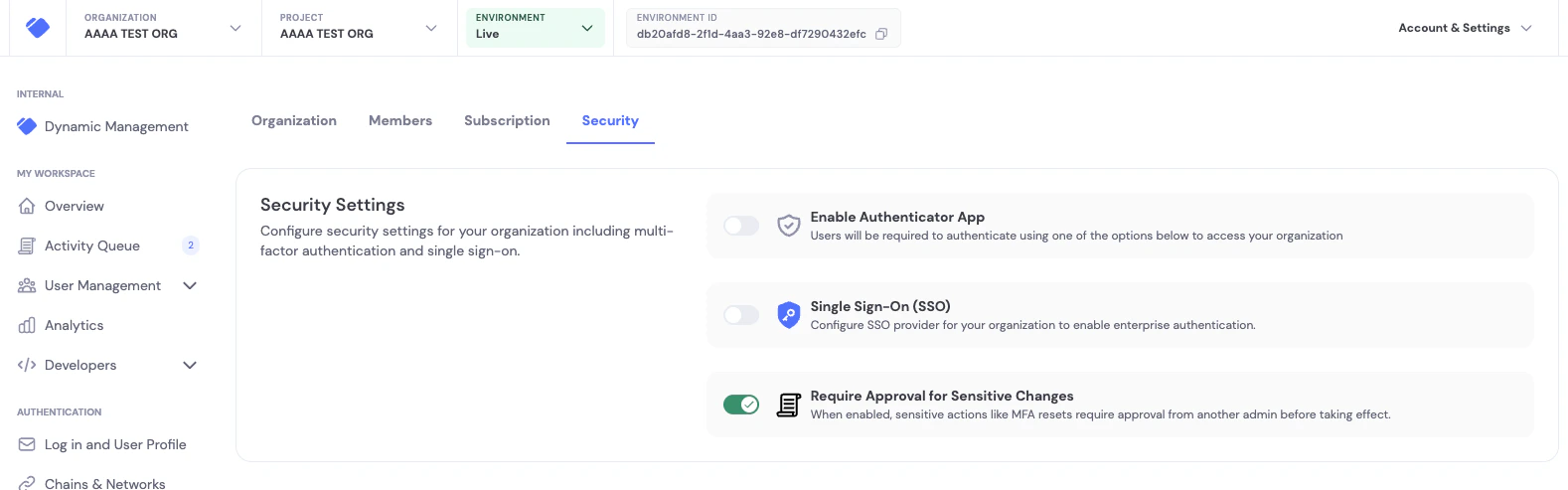
- Go to Account & Settings → Security in the Admin Security page.
- Toggle on Require Approval for Sensitive Changes.
- Set Required approvals to the number of distinct admins or owners that must approve before the action takes effect. The default is
1.
Required approvals (quorum)
The Required approvals field lets you require more than one admin to sign off on a request. The submitter cannot approve their own request, so the upper bound is the total number of owners and admins in your organization, minus one. If you have 4 admins, the highest value you can set is3. The developer console shows the current cap as helper text below the input.
- Any single denial rejects the request immediately: the workflow does not wait for the remaining admins to vote.
- The threshold is snapshotted at the moment a request is submitted. Changing the setting later does not affect in-flight requests.
- If the threshold is set higher than the current approver pool can satisfy, new requests will be rejected at save time. Existing pending requests keep their snapshot and may expire if they can no longer reach quorum.
Submitting an action
When you take an approvable action while approval mode is on:- Make the change as you normally would (for example, reset a user’s MFA from User Management).
- Instead of being applied immediately, the action is added to the Activity Queue with status Pending.
- All other admins and owners in the organization receive an email that a request needs their review.
- You cannot approve your own request. You will see Awaiting another admin next to your own pending items.
Reviewing requests in the Activity Queue
Admins and owners review pending requests in the Activity Queue.- In the sidebar, open Activity Queue. A badge shows the number of pending items in the active environment.
- Each row shows the action, who submitted it, how long ago it was submitted, how much time is left before it expires, and its current status. When the number of required approvals is greater than
1, pending rows show progress as Pending (N/M): the number of approvals collected so far against the threshold. - Click Review on a pending item to open the review dialog.
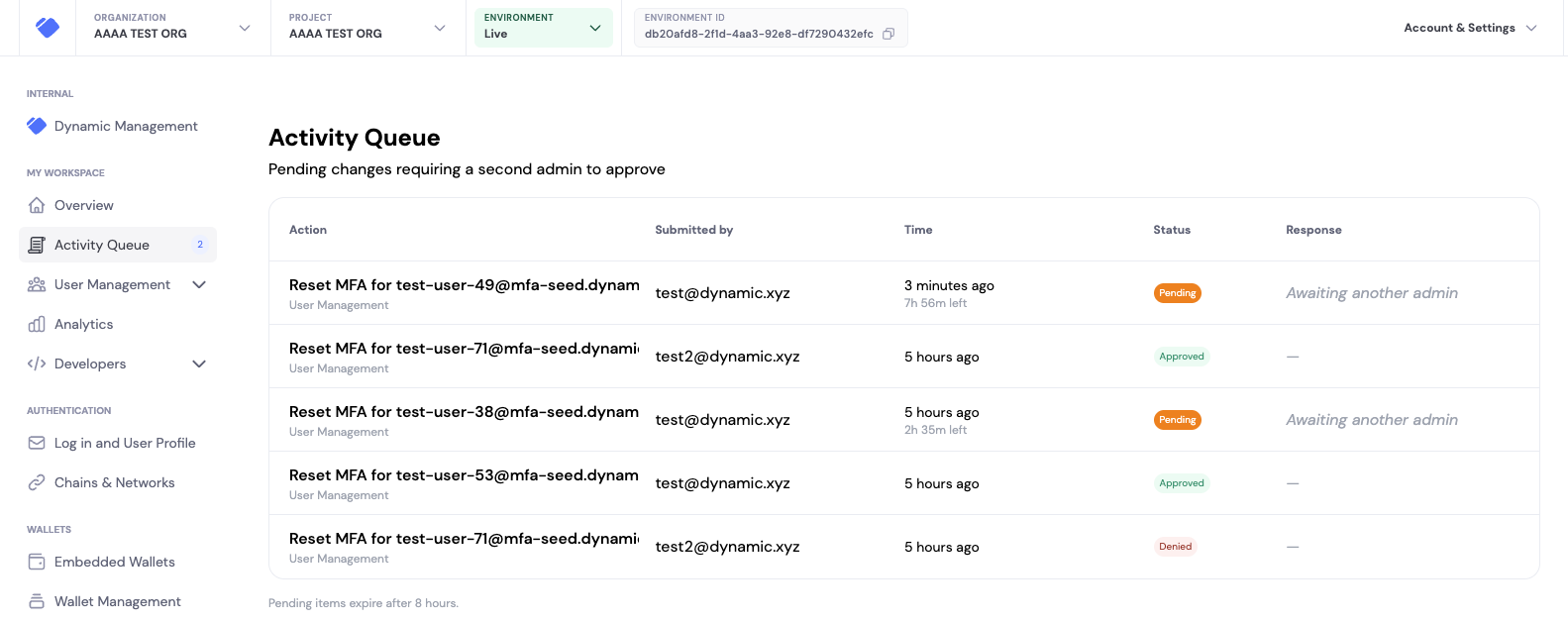
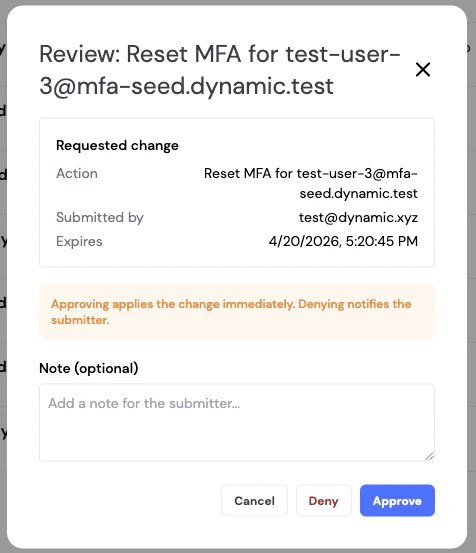
The Activity Queue is scoped to the active environment. Switch environments in the top bar to see requests for a different environment.
Expiration
Pending requests expire 7 days after they are submitted by default. Expired requests cannot be approved or denied; the submitter must resubmit the action. Turning off approval mode also expires any outstanding pending requests.Email notifications
The approval workflow sends three notification types automatically:- Request created: sent to every admin and owner except the submitter, when a new pending request is created.
- Request approved: sent to the submitter when another admin approves their request.
- Request denied: sent to the submitter when another admin denies their request, including any note the reviewer provided.