

SSO Login URL
SSO Setup
1
[Okta] Go to “Applications” and select “Create App Integration”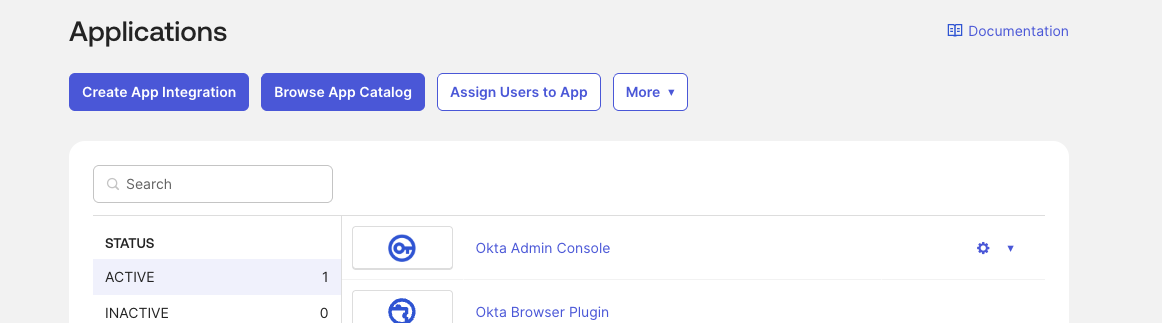
2
Select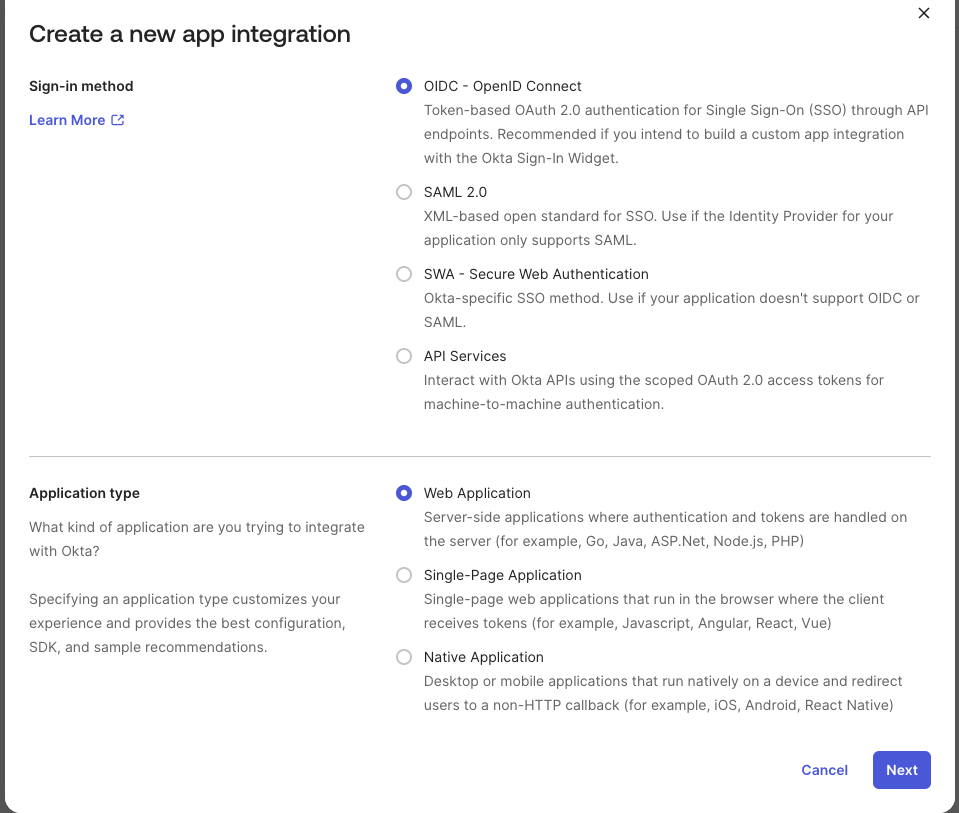
- “OIDC - OpenID Connect” and “Web Application” and click “Next”
3
Fill: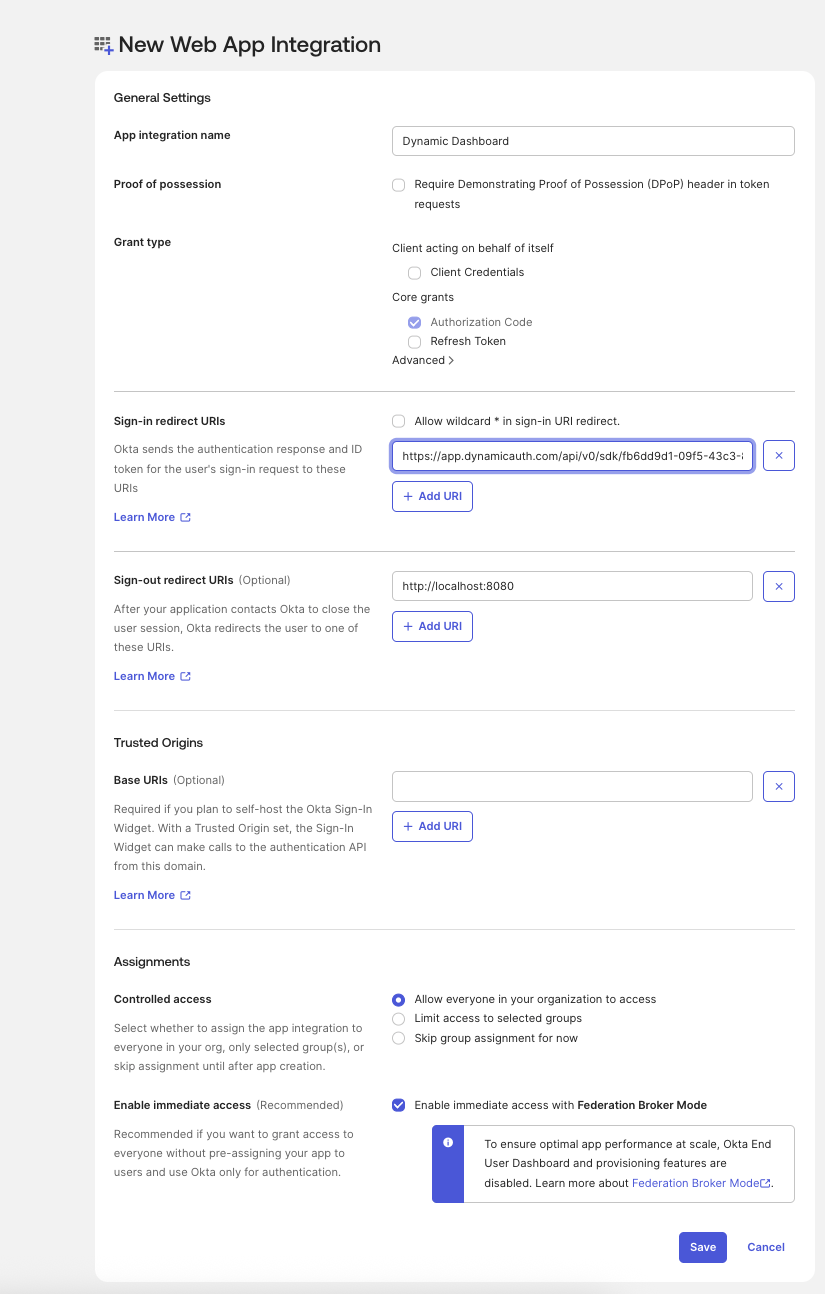
- “App Integration Name”: Dynamic Dashboard
- “Sign-in redirect URI”: “https://app.dynamicauth.com/api/v0/sdk/fb6dd9d1-09f5-43c3-8a8c-eab6e44c37f9/providers/okta/redirect”
- “Assignments” - Choose the option that suits you best click “save”
Dynamic Setup
1
Go to “https://app.dynamic.xyz/dashboard/admin#security”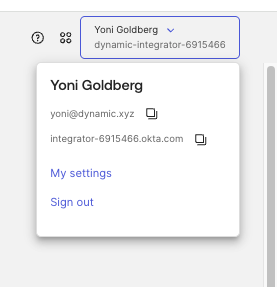
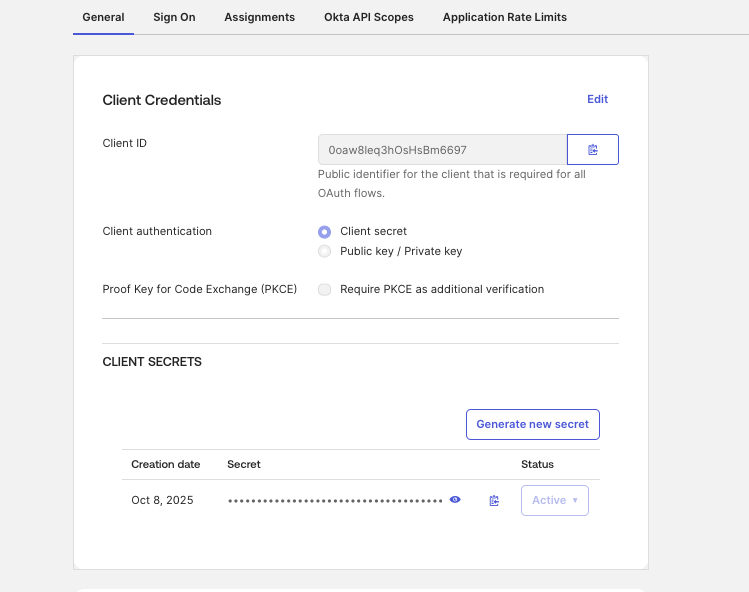
- enable SSO [If it is disabled, please provide us with your org ID and we will enable it for you]
- SSO domain - paste your Okta domain (you can find it on the user’s profile on Okta’s admin)
- Email Domain: your organization email domain (
dynamic.xyz) - Client ID and Secret - copy from here:
2
Click Save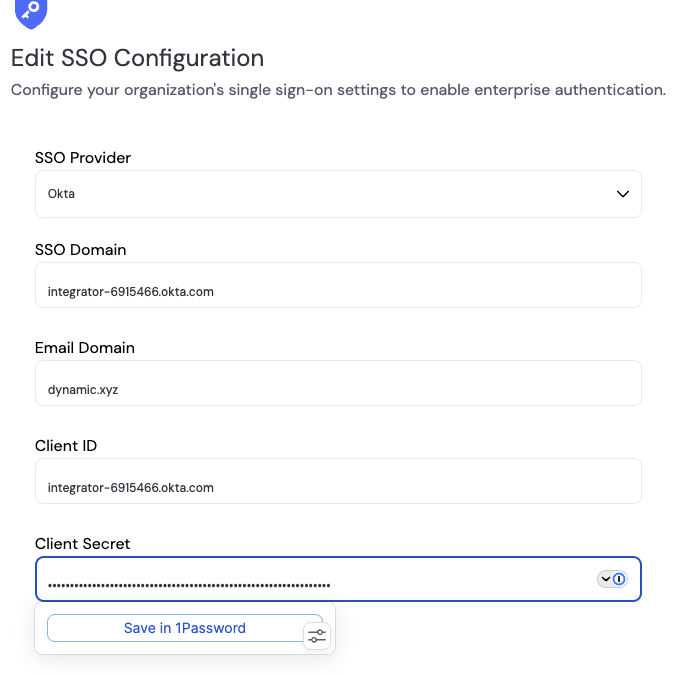
3
After saving the record you will be prompted to complete the domain verification to enforce all emails from your domain to login with Okta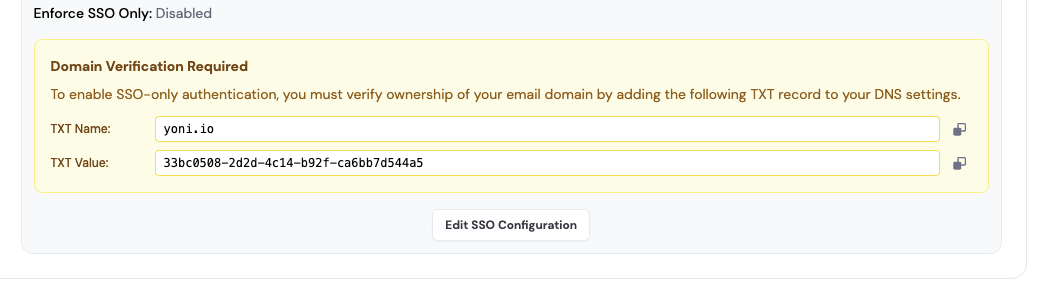
4
Once you tested the integration you can select Enforce SSO Only.Invite the users to your org here: https://app.dynamic.xyz/dashboard/admin#members