

- Multi-Factor Authentication (MFA)
- CORS origin urls
- JWT expiration time
- Email notifications
- Revoke active sessions
- Lock environment
Multi-Factor Authentication (MFA)
Configure Multi-Factor Authentication (MFA) for your end users to secure account access and sensitive actions. MFA is structured as enrollment (users register a TOTP device or Passkey) and enforcement (when the second factor is required). Enforcement can be session-based (every login), action-based (specific sensitive actions such as signing or exporting keys), or both. We particularly recommend action-based enforcement—it adds an extra layer of protection against unauthorized access to sensitive operations, even when credentials are compromised. To configure MFA, navigate to the Security Settings in the dashboard. Enable your desired MFA methods (TOTP and/or Passkeys) for enrollment and for any enforcement you use (session-based and/or action-based).For details about enrollment and enforcement, configuration options, and implementation, see End-User MFA.
Allowed CORS Origin
Adding origins for CORS to your project environment (sandbox and live) protects your environment from unauthorized websites using your public environment key. Any origins added to an environment will allow only those domains to make API requests via our SDK.If you don’t add an origin, all domains will be allowed to make API requests
CORS configuration is only necessary for web-based SDKs (React, JavaScript).
If you are using a native SDK like React Native, Flutter, Swift, or Kotlin,
you do not need to configure CORS origins, as native environments do not use
browser-based HTTP requests subject to CORS policies.
Adding an Origin
To add an origin, navigate to the Security Settings in the dashboard. Click Create Origin and add your origin. (You can add multiple origins to any environment) Be sure to format your origin according to the RFC 6545 format (exception of the wildcard*). An origin is a URL without the path.
Using wildcards
One or more* wildcard characters in your origin will represent 0 or more
characters (a-z, 0-9, -, .) when matching origins.
Acceptable Example Values
- http://domain.com
- https://domain.com
- https://sub.domain.com
- http://127.0.0.1:4200
- http://localhost:3200
- https://my-app-*.vercel.app
Unacceptable Example Values
- domain.com
- //domain.com
- https://domain.com/home
JWT Expiration Time
In the security settings page, you can update the expiration date of the JWT token. The expiration time is the amount of time before one of your customers will need to sign to log in. To update this expiration time, navigate to Settings > Security in the dashboard. Enter the amount of time in Day, Weeks, Months for the expiration time.
Email Notifications
Configure email notifications for security-related events in your environment. Email notifications alert you to important security events that require your attention. To configure email notifications, navigate to the Security Settings in the dashboard. Enable or disable the email notification options for your environment.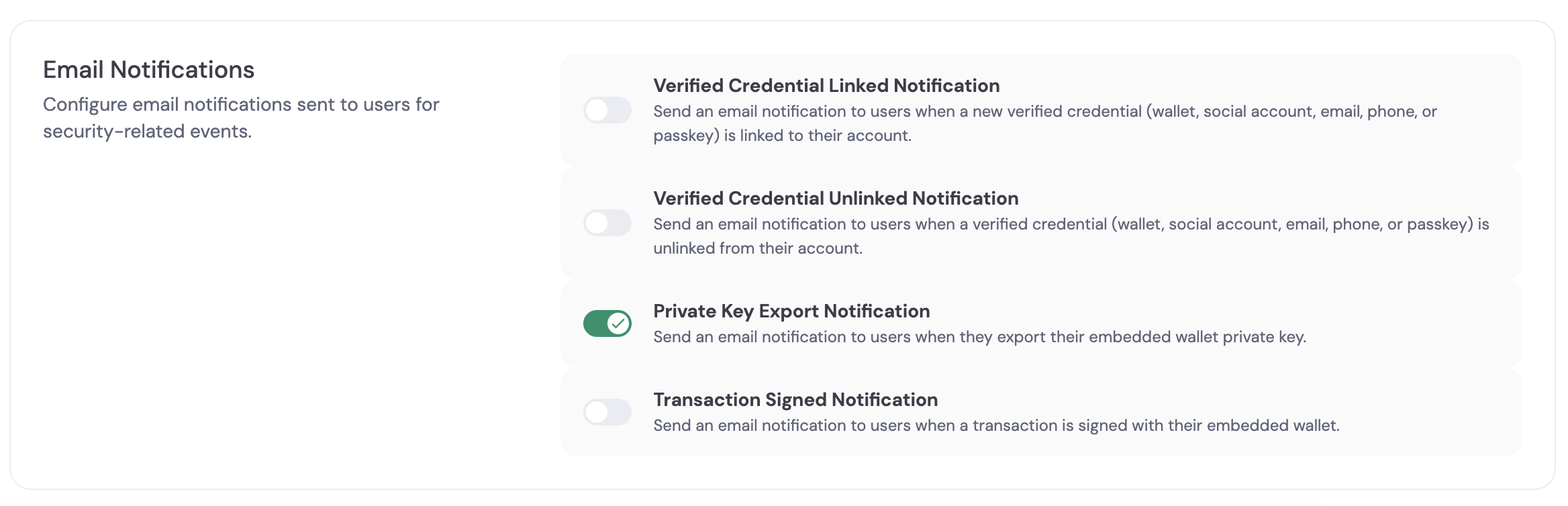
Revoke Active Sessions
The revoke sessions action invalidates all active user sessions in an environment. This is a failsafe action you can trigger at any time. This action applies to all users in the selected environment (sandbox or live). Revoked sessions cannot be used for wallet transactions. Revoked sessions cannot be used for authenticated requests. The SDK detects revoked sessions on the next request and logs users out automatically. This action cannot be undone.Revoking Sessions
To revoke all active sessions, navigate to the Security Settings in the dashboard. Click Revoke All Sessions and confirm the action.
Lock Environment
You can lock access to an environment from the dashboard so that its APIs cannot be used. Locking an environment is a failsafe measure—use it when you suspect compromise or need to immediately stop all traffic to that environment (sandbox or live). While locked, the environment will not accept API requests. Lock and unlock are available under Account Security in the Security Settings page. Only the owner of the organization can see and use the lock environment option.